📌 Weekly Structure (applies every week)
Content Release: Mondays @ 11 AM (Tues @ 11 AM if holiday week)
Deadlines: All assignments due Mon @ noon (or Tue when no Monday class)
ZOOM : Optional. Monday review + critique (recorded). If no Monday class → prerecorded review + Wed @ noon live session.
Critiques: Regular weeks: Mon @ noon → Wed @ noon
No Monday class: Tue @ noon → Thu @ noon
Use discussion board if not in ZOOM
Remote Office Hours: Wednesdays, 1–3 PM → Schedule Here
Week 3 Links & Notes
(specific to this week)
Live Sessions This Week:
👉 Join Live: Mon 9.8 @ noon – Week 3 Review + Styleframe Critique
→ [Join Here]
📺 Watch: Mon 9.8 Review + Live Crit Recording → [Watch Here] approx 30m
Looking Ahead (Week 4)
Next live (recorded) session: Mon Sept 15 @ noon (only live session in Week 4)
*non-holiday weeks we will meet on Mondays
This week’s deadlines:
Wednesday, Sept. 10 @ noon
- 6. P1 Styleframes + Storyboard + Motion Test Critique – For credit, either participate in 9.8 live critique, OR provide comprehensive peer feedback on 3 peer’s styleframes, storyboard, and 2s motion test. IF you did not participate in Monday’s Zoom critique, you are required to provide styleframe feedback to 3 others in the class and review their Medium posts before giving feedback).


Monday, Sept. 15 @ noon
- 8. Exercise 1 – post to Vimeo as “Exercise 1”
- 4. 10s of P1 development – Develop in AE. Render. Post to Vimeo + Import to the bottom of your Ideation Story on Medium (if you struggle to post to Medium, please just post to Vimeo).
- Note: 20–30s on P1 development will be due the following Monday 9.22 @noon.
Weekly Content
Week 3 (though not required, it is recommended you move through in sequence. All items need to be complete by Monday @noon):
- Watch recording of Weekly Review.
SECTION I – Motion Design - Read Motion Design Considerations
SECTION II – P1 - Continue development of P1 Kinetic Typography
- P1 Crit #1 –Participate in Monday Zoom Critique or Post/Comment to Discussion Board on D2L “P1: Styleframes” by Monday 9.9 @noon. Comment on 3 others by Wednesday@noon (if you do not attend Monday’s ZOOM). You only need to participate in one or the other.
- Due next Mon. 9.15: 10s of p1 development in AE (post to Vimeo – and medium, if possible)
SECTION III – AE - Watch Demo AE Videos
- Review After Effects Resources + Audio Resources (as needed)
- Due Mon 9.15@noon Complete Exercise 1 (posted in earlier week)
SECTION I – MOTION DESIGN
2. Motion Design Considerations
This week focuses on manipulating numerous elements and adding easing qualities to your motion designs. Consider these ideas as you work on your P1 development:
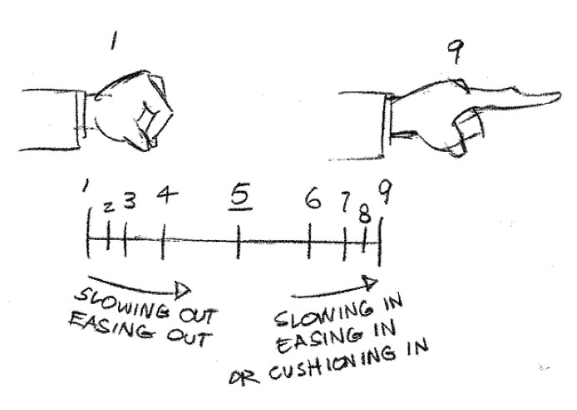
- Easing should be inspired by the qualities of the element. For example, an element with a heavier weight would fall faster and hit the perceived surface harder.
- Lead the viewer’s eye with motion. Our eyes look towards whatever is animated. If too many elements are moving in contradictory motions, it can be visually confusing.
- Pay attention to pacing. Is the type too fast or slow?
- Refine type/audio alignment. Is the type appearing too soon or too late? Consider type that remains too long and competes with any incoming text.
- Create typographic relationships. This is motion design. Rather than only making type appear and disappear with the audio, create relationships from one scene to the next.
- Lastly, don’t over-animate and consider motion unity. Repetition with variation in how things move can avoid the design creating “motion soup.” Variation is good for creating interest but too much can feel chaotic. This is a balancing act and will take practice to refine.
SECTION II – P1
3.
Project 1: Kinetic Typography
due: Monday 9.29 @noon
Continue P1 Kinetic Typography.
This week, we will focus on the development of our motion designs with a 10s critique.
Looking ahead, next week we will have a final 30s critique next week.
P1 Process Work
Post/Post to a story called “Kinetic Typography: Ideation” on Medium. How to post on Medium.
- 4. Styleframe Critique: P1 Crit #1 –Participate in Monday 9.8 Zoom Critique or Post/Comment to Discussion Board on D2L “P1: Styleframes” (post by Mon @ noon / 3 comments by Wed @ noon. In D2L, go to Communications > Discussions). You only need to participate in the D2L critique if you do attend the Monday Zoom. Post your link to your uploaded Vimeo file and describe your audio and how you want it to feel. Make note if you are looking for feedback on anything specific.
- 5. Due next Mon 9.15: 10s of Project 1 rendered and uploaded to Vimeo WITH your audio. If necessary, continue revising storyboard or styleframes per the feedback received in crits this past week.)
SECTION III – AE
6. AE Demos
In After Effects, this week delves deeper into type (text masks), compositions (precomposing, nesting), keyframes (easing and interpolation), parenting, importing Audio Import – right click to save (demo file 1), (demo file 2), and the use of the graph editor. Please watch the videos below, review the resources, and complete Exercise 1. The handout below can be used for quick reference while working through the application.
AE Handout: Intro to After Effects
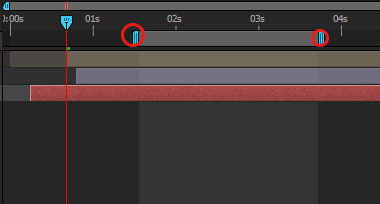
Important Note on Rendering: To render out a portion of your work rather than an entire composition, resize the work area on the right side of your timeline panel. The work area selected is the ONLY portion that will render out through the Adobe Media Encoder.
7. AE Resources
- Review Precomposing, Nesting, and Pre-rendering
- Watch Video: Parenting Tutorial | 1:08m
- Optional Extension Videos for above Demos:
- Watch Video: Keyframe Interpolation | 5:10m (begin at 1:00)
- Watch Video: Smooth (and sexy) Keyframe Movements | 3:25m
- Watch (as needed) Video: The Graph Editor | 19:50m
- Watch Video: Time Remapping | 4:42m
- Watch Create Smooth Graphics By Fine-Tuning Your Keyframes in After Effects | Rocketstock
- Watch Roving Keyframes (up to 7:00m) (smoothing out time using positioning)
Audio Resources
- Soundly
- MusOpen
- AudioBlocks
- http://freemusicarchive.org/curator/Creative_Commons/
- https://archive.org/details/netlabels
- http://www.beatpick.com/
- https://www.bensound.com/royalty-free-music/3
- http://magnatune.com/genres/
- https://freesound.org/browse/tags/music/
- https://musopen.org/
- http://surf4u.com/
- https://filmstro.com/music
- https://www.purple-planet.com/royalty-free-music
- https://www.hooksounds.com/
Types of Keyframes
linear interpolation: Moves at a constant, steady speed between keyframes, like a mechanical motion. There’s no acceleration or deceleration.
example: elevator sliding up
bezier interpolation: Gives you precise control over the motion by adjusting handles manually. This allows for sharp curves and custom paths for smooth or dramatic changes. This is ideal when you need very specific control over acceleration, deceleration, and movement paths.
example: a bouncing ball manipulating the sharpness of the bounce
auto bezier interpolation: default spatial motion (moving objects) / AE automatically smooths the rate of change between keyframes, making it great for creating naturally curved motion paths.
example: a smooth camera pan or a drone flying through the air—you want the path to be curved but don’t need to manually control every part of it.
continuous bezier interpolation: auto smooth rate of change / AE automatically smooths the motion path for continuous, flowing movement. It’s a balance of manual control with automatic smoothing.
example: a leaf drifting through the wind—smooth, flowing movement with some control over how the leaf move through the air.
hold interpolation: only for temporal value / Used for sudden changes, like switching between two different values instantly without any smooth transition. Ideal for creating abrupt shifts in appearance.
example: a light turning on and off—abrupt changes.

AE Keyframe Shortcuts + Tips
- (right click) on keyframe > keyframe interpolation to change temporal or spatial interpolation
- (right click) on keyframe > keyframe assistant to add easing to keyframes
- (control + 8) set marker
- (cmd + click) on keyframes to change to auto or linear keyframe
- (option + click) on properties to move entire motion path OR select all keyframes
AE Keyboard Shortcuts
- (s) scale, (p) position, (a) anchor point, (r) rotation, (t) opacity
hold shift to select multiple - (u) see all keyframes for layer
- (u + u) to see all adjusted properties
- (+) or (-) to expand or zoom on timeline
- (,) or (.) to expand or zoom composition panel, (shift + /) to fit to screen
- (j) or (k) key to jump between keyframes in timeline
- (shift + cmd + n) apply mask over text layer
- (cmd + double-click) on pan behind (anchor point tool) to center anchor point
AE Keyframe Interpolation


Curves = Acceleration and Deceleration
- A curved line means speed is changing. If the curve is going up, the object is speeding up (accelerating). If it’s going down, the object is slowing down (decelerating).
- When you see handles on the keyframes, use them to manually adjust how fast or slow the object moves. The longer you stretch the handle, the more gradual the change.
- Flat Lines = constant speed.
- Steep Curves = fast changes.
- Shallow Curves = slow changes.
- Use Easy Ease to quickly smooth out your animation. After Effects will automatically create a curve to help an object slow down or speed up gradually. This is great for a natural-looking animation.
- Ease In: Starts slow, then speeds up (like accelerating from a stop).
- Ease Out: Starts fast, then slows down (like braking a moving car to a stop).
- Keep Learning: Create better eases in AE & Roving Across Time with Roving Keyframes